Sending and receiving emails are part of our daily work routine, yet have you ever felt fatigue receiving endless emails daily or frustrated in sending unprofessional emails? In today’s video we will be teaching you 3 email etiquette tips that can help you better manage your emails and enhance your communications with your clients, business partners or colleagues.
Outlook Reactions
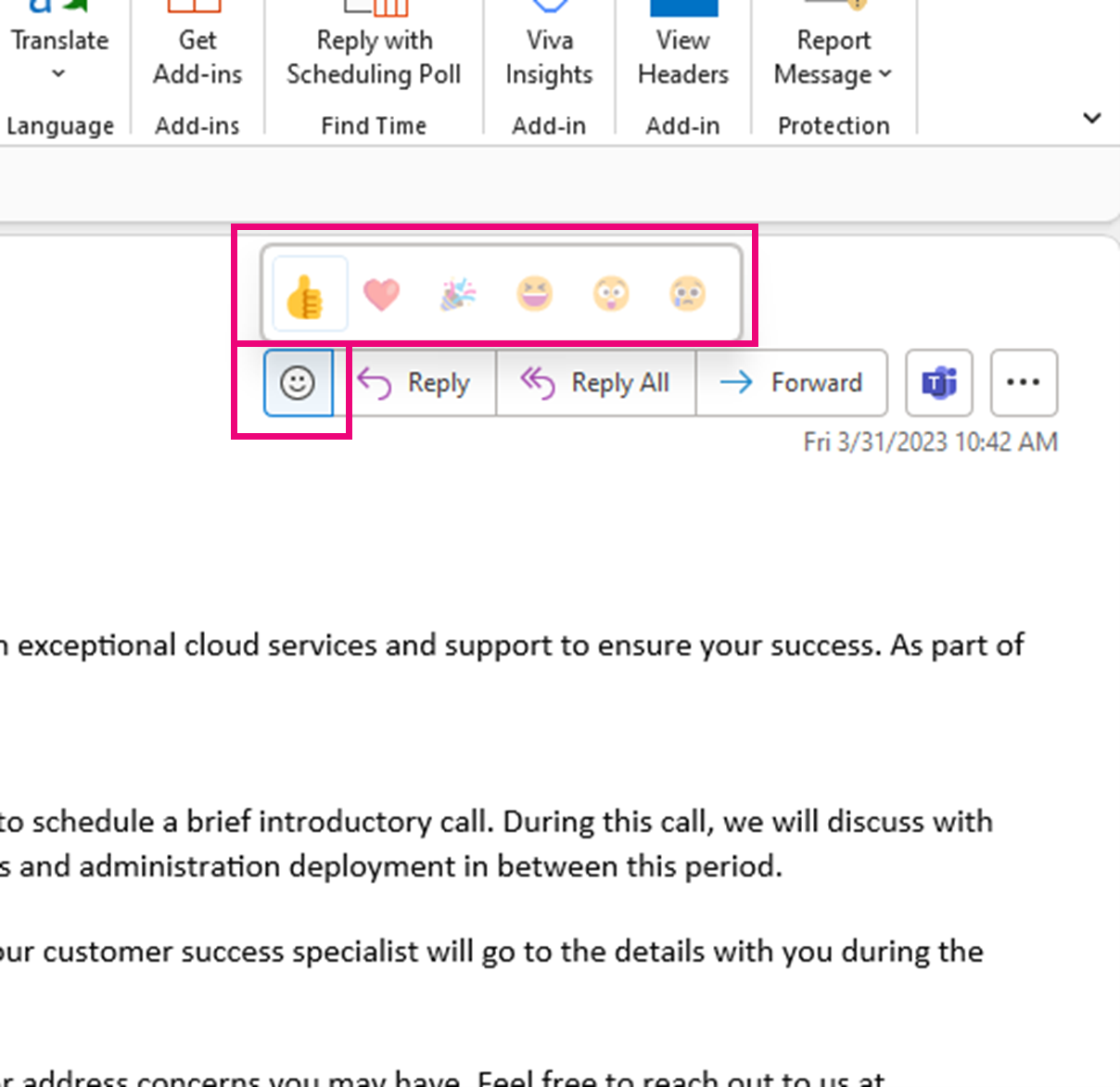
Use Outlook reactions to avoid sending unnecessary emails back and forth.
1. Select an emoji to reply to an email from the top right navigation bar.
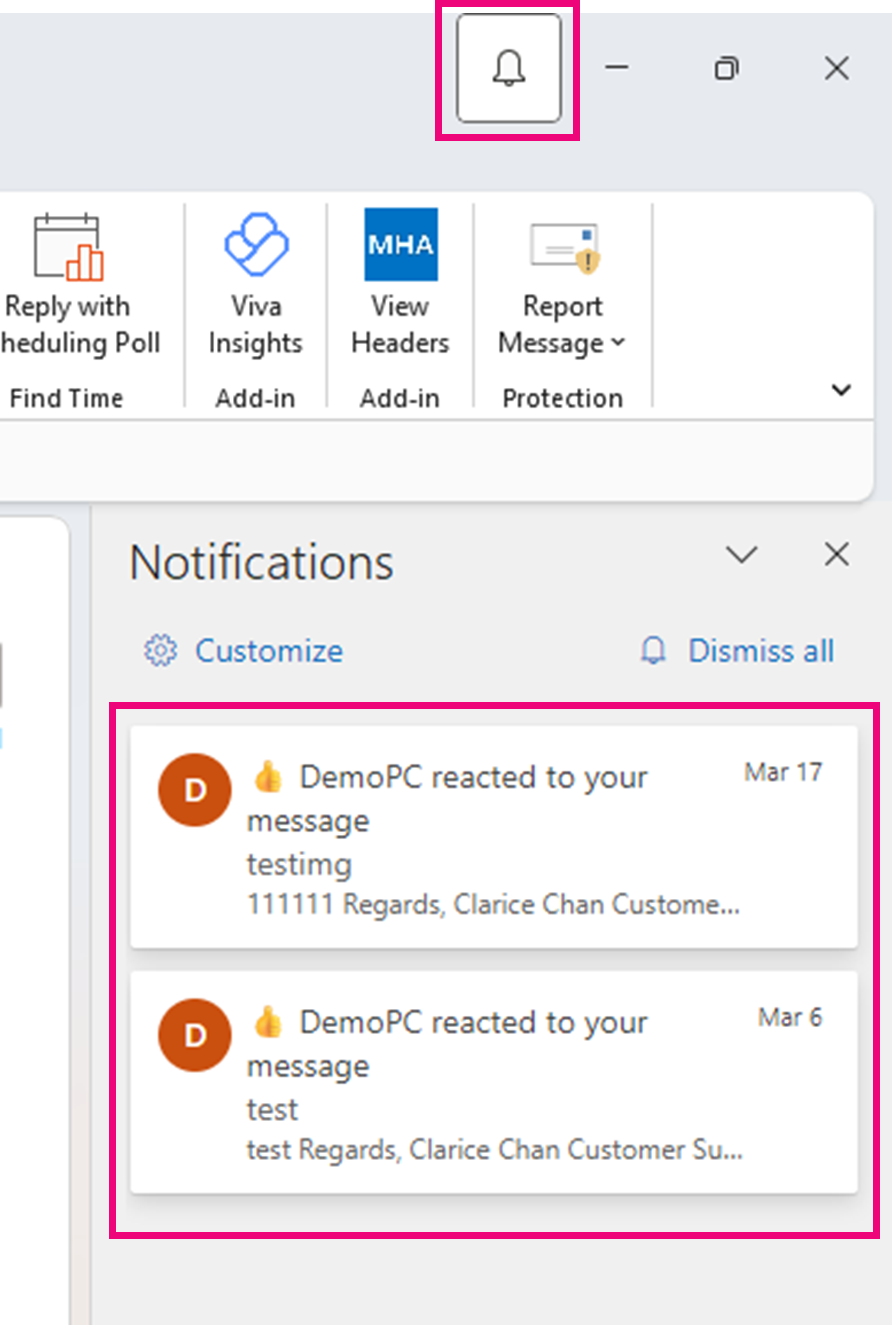
2. Sender will receive a notification, and it will be shown in the 【Bell】 icon found in the top right corner.
@ Mentions
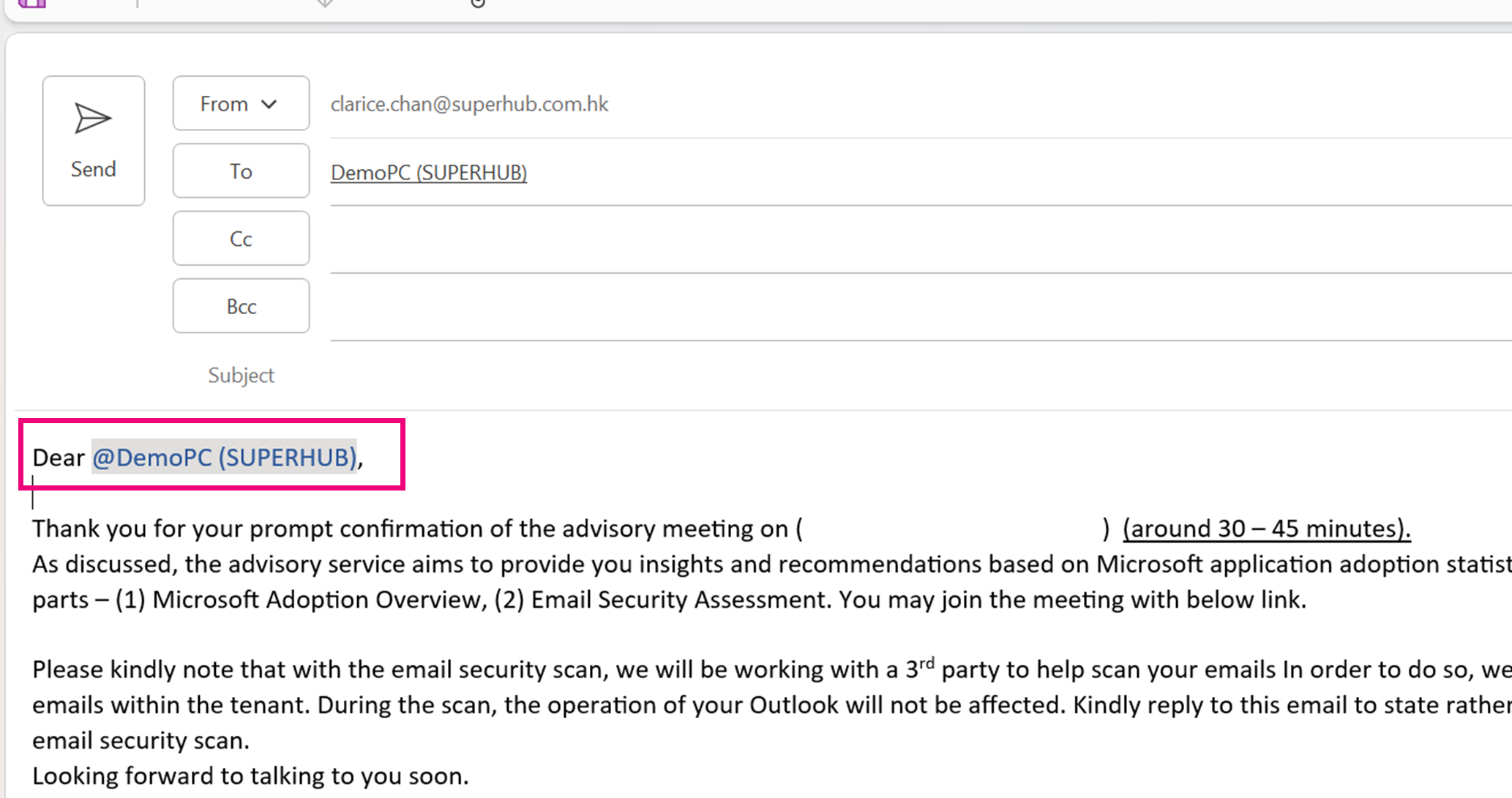
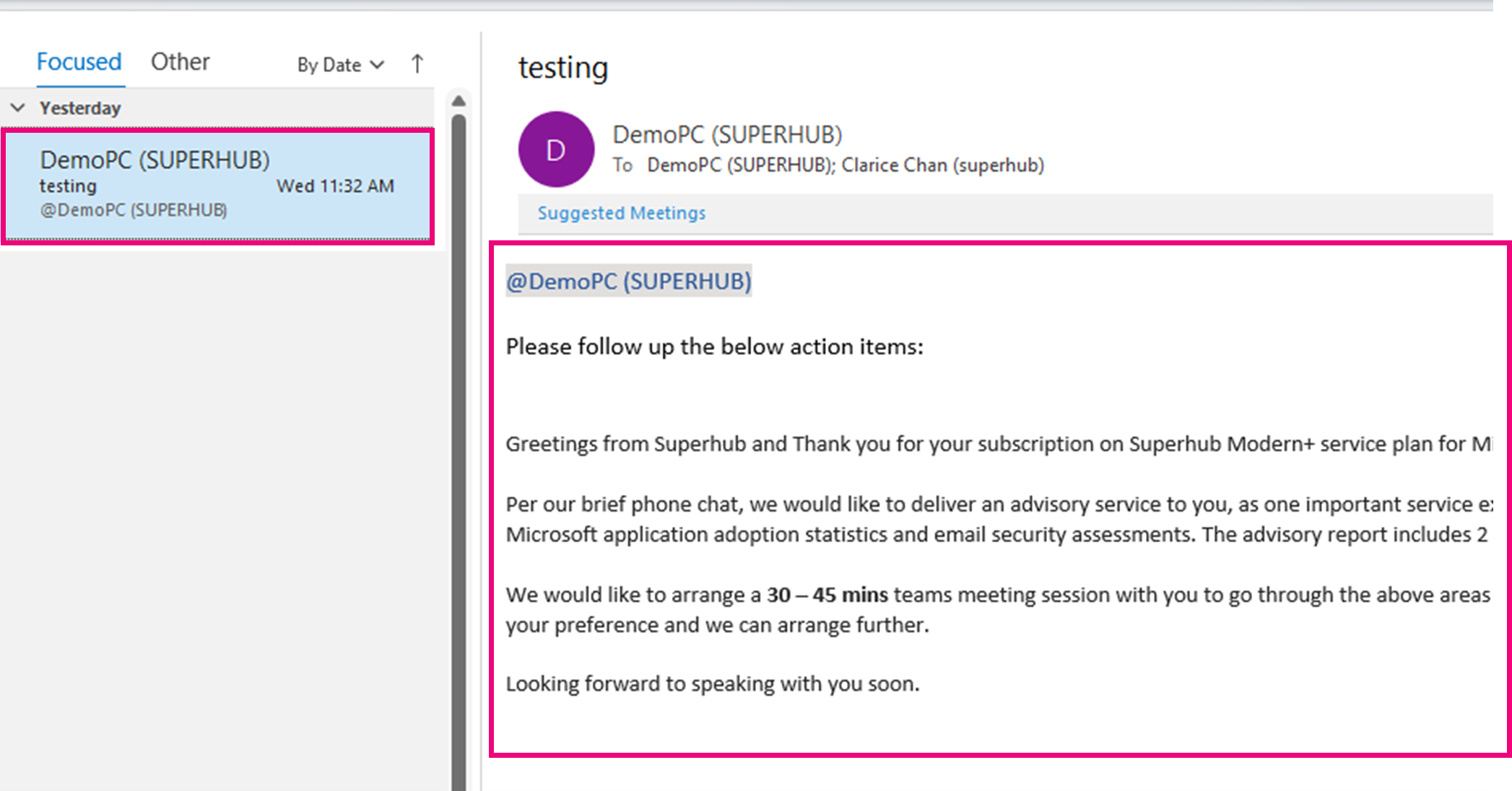
Use @ mentions to notify the receiver to follow up action items.
1 In the designated area within the email insert @mention feature to tag the person.
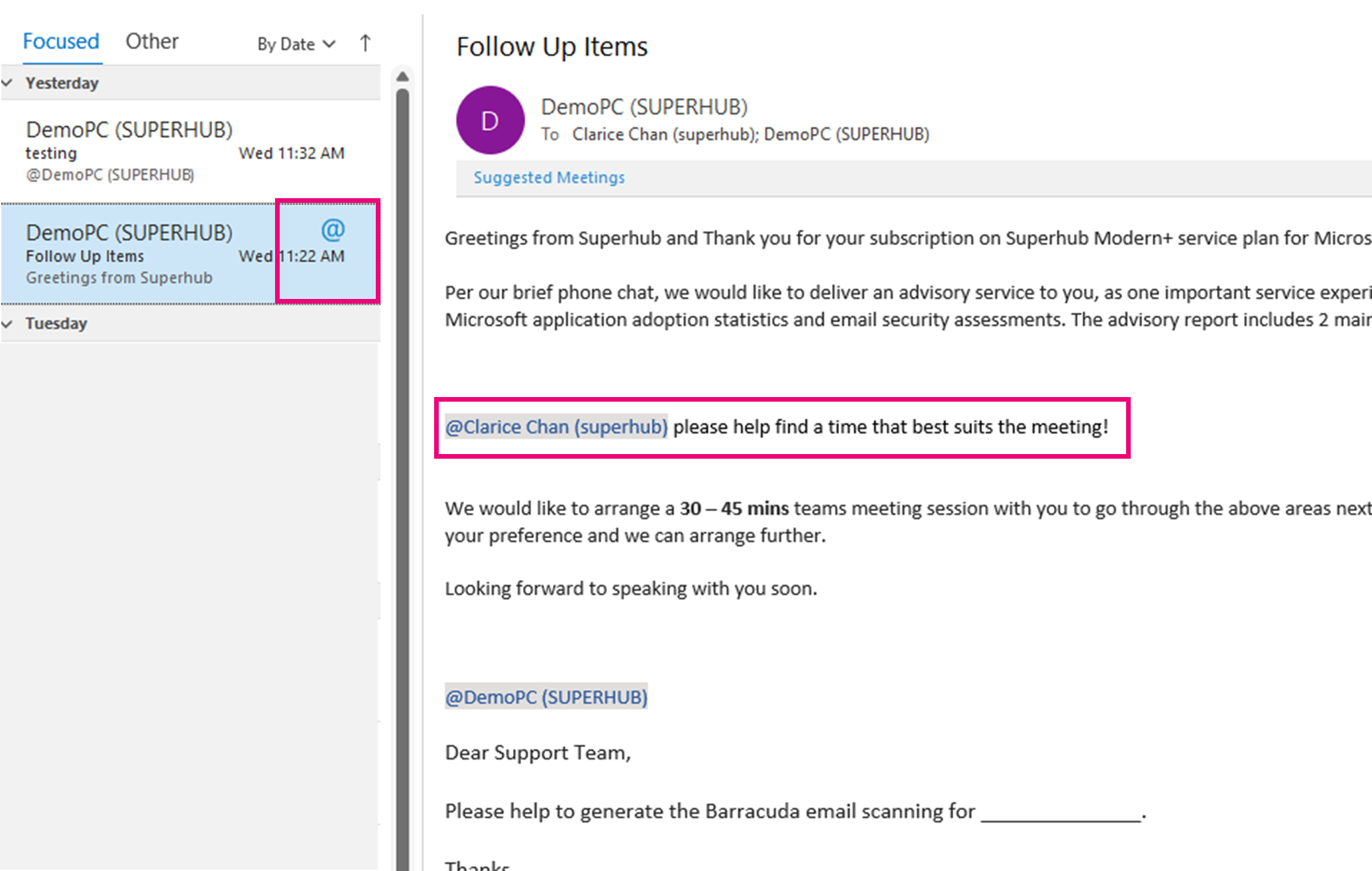
2. Receiver that was tagged will see a 【@】 icon next to the email panel, on the other hand if the receiver was not tagged the 【@】 logo will not show up.
Delay Delivery
Delay emails to avoid sending or recalling unprofessional emails.
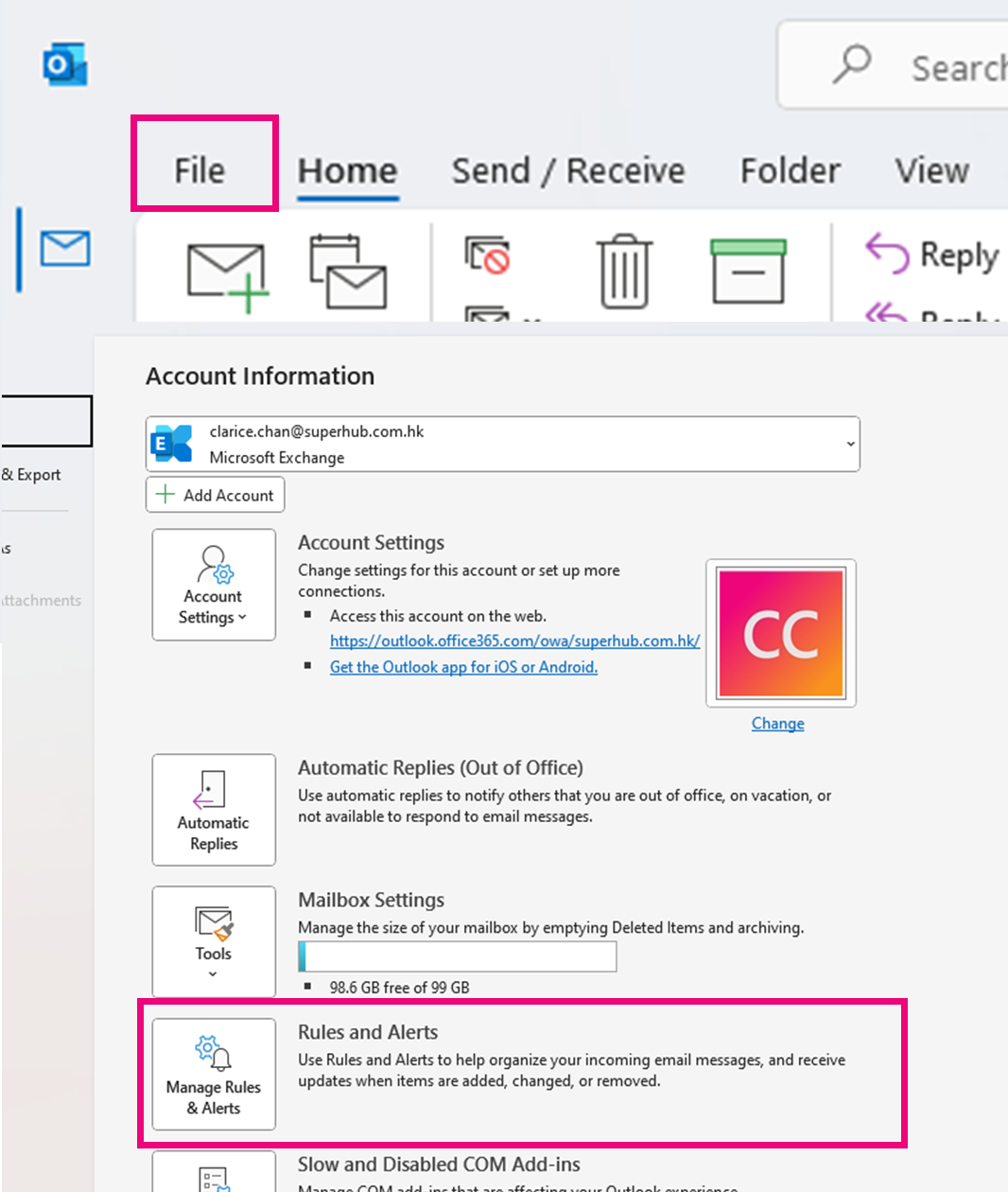
1. Select 【Files】from the upper left corner, then select 【Manage Rules & Alerts】.
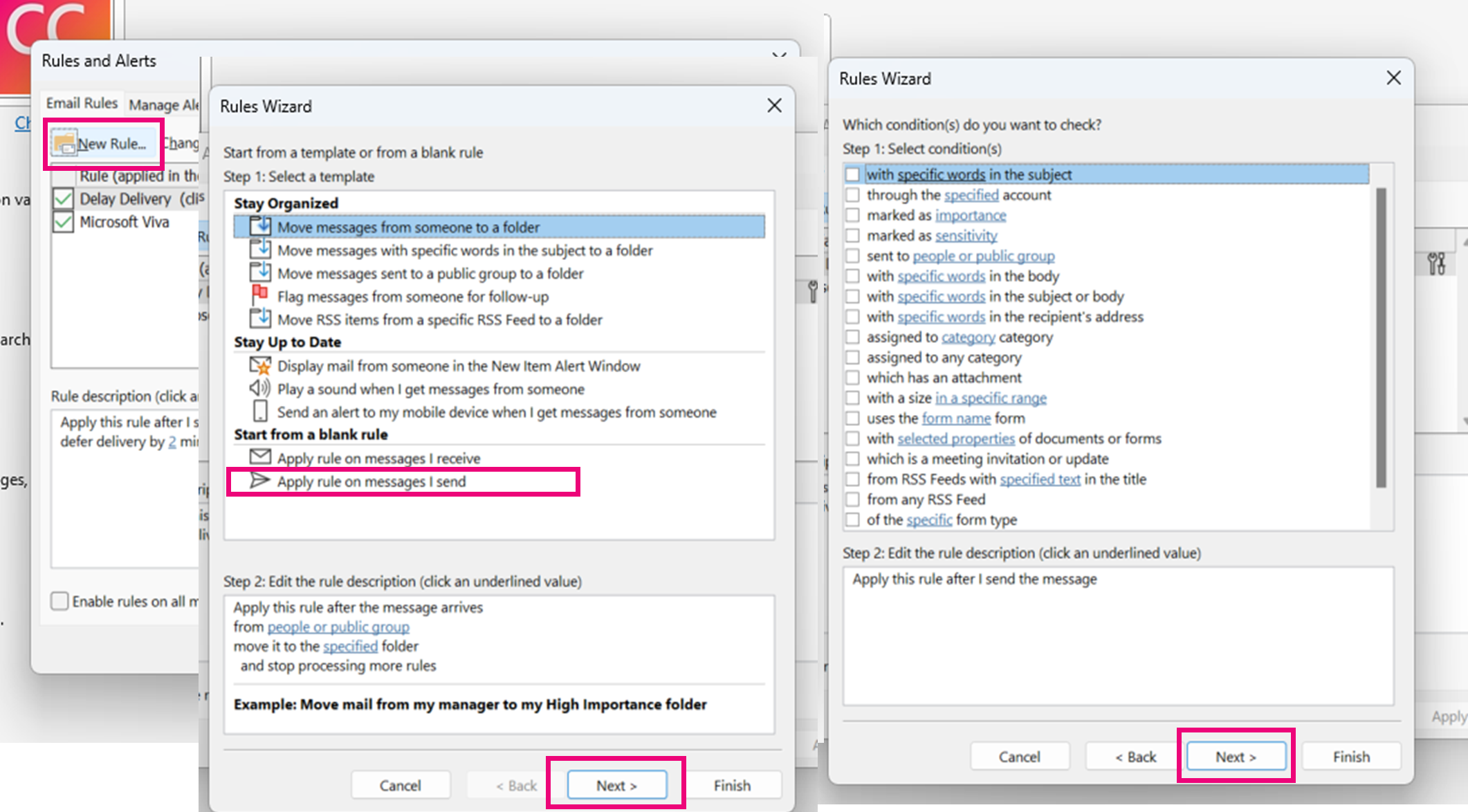
2. Select 【New Rule】 from the pop-up menu and select 【Apply Rule on Messages I Send】. Then select 【Next】and 【Next】 again.
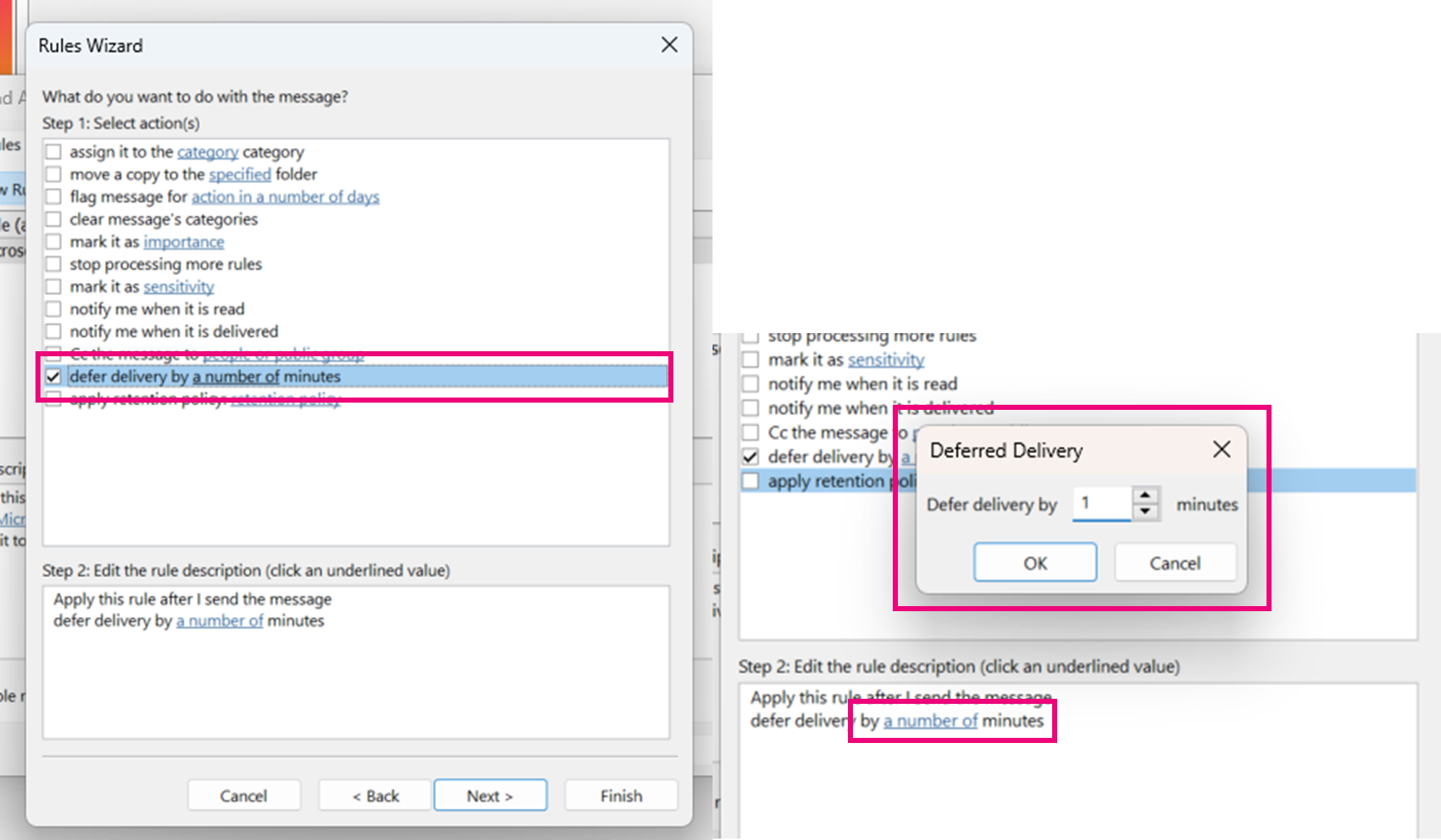
3. Check the box 【Defer Delivery by a Number of Minutes】 and select the rule to enter the number of minutes you wish to defer.
Maximum 120 minutes can be set, but it is suggested to set this rule with 2-minutes.
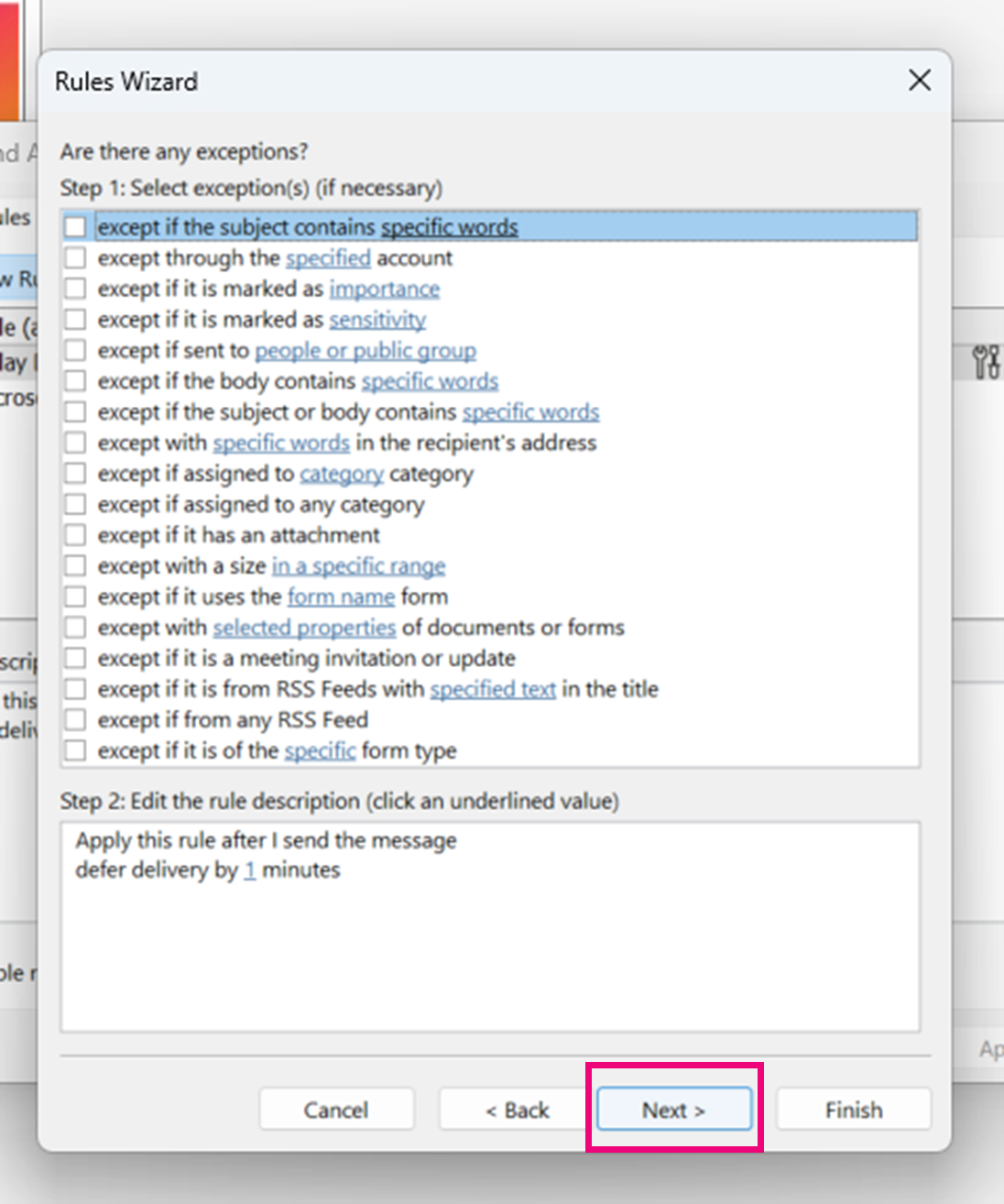
4. If there are exceptional cases that can bypass this rule, please select the suitable cases here.
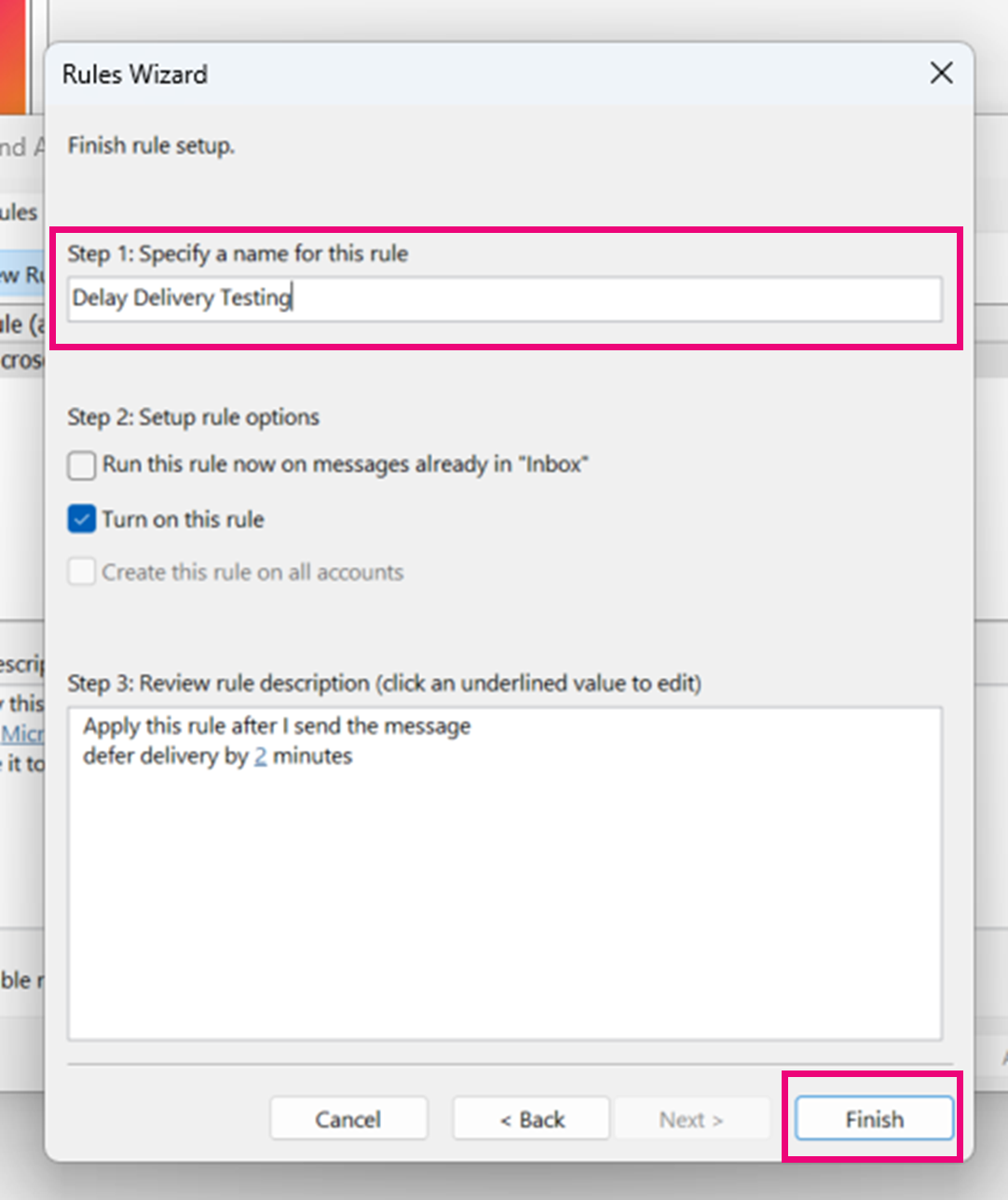
5. Set a name for your rule, then select 【Finish】. Now every email you send will have a 2-minutes wait time before it is officially sent out.
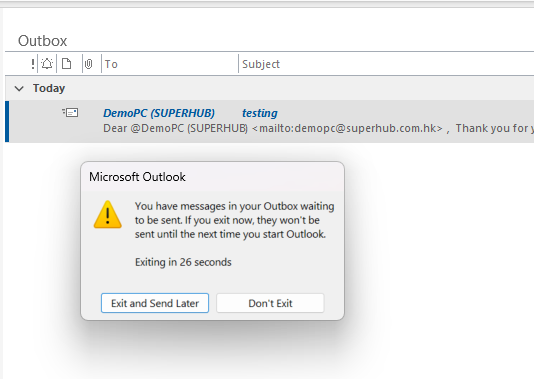
Friendly reminder: Outlook will need to be open and online for all awaiting mails in the outbox to be sent out.
Through these 3 email etiquette tips, it should help you better manage your emails and enhance your communications with your colleagues and business partners via Outlook.