In the recent hybrid work environment, communicating with colleagues and business partners in different locations is a new normal. In this video, it will guide you through setting up new time zones and public holiday schedules of other time zones, so that you can easily find the best timings to communicate with those in different locations.
Setting Time Zone
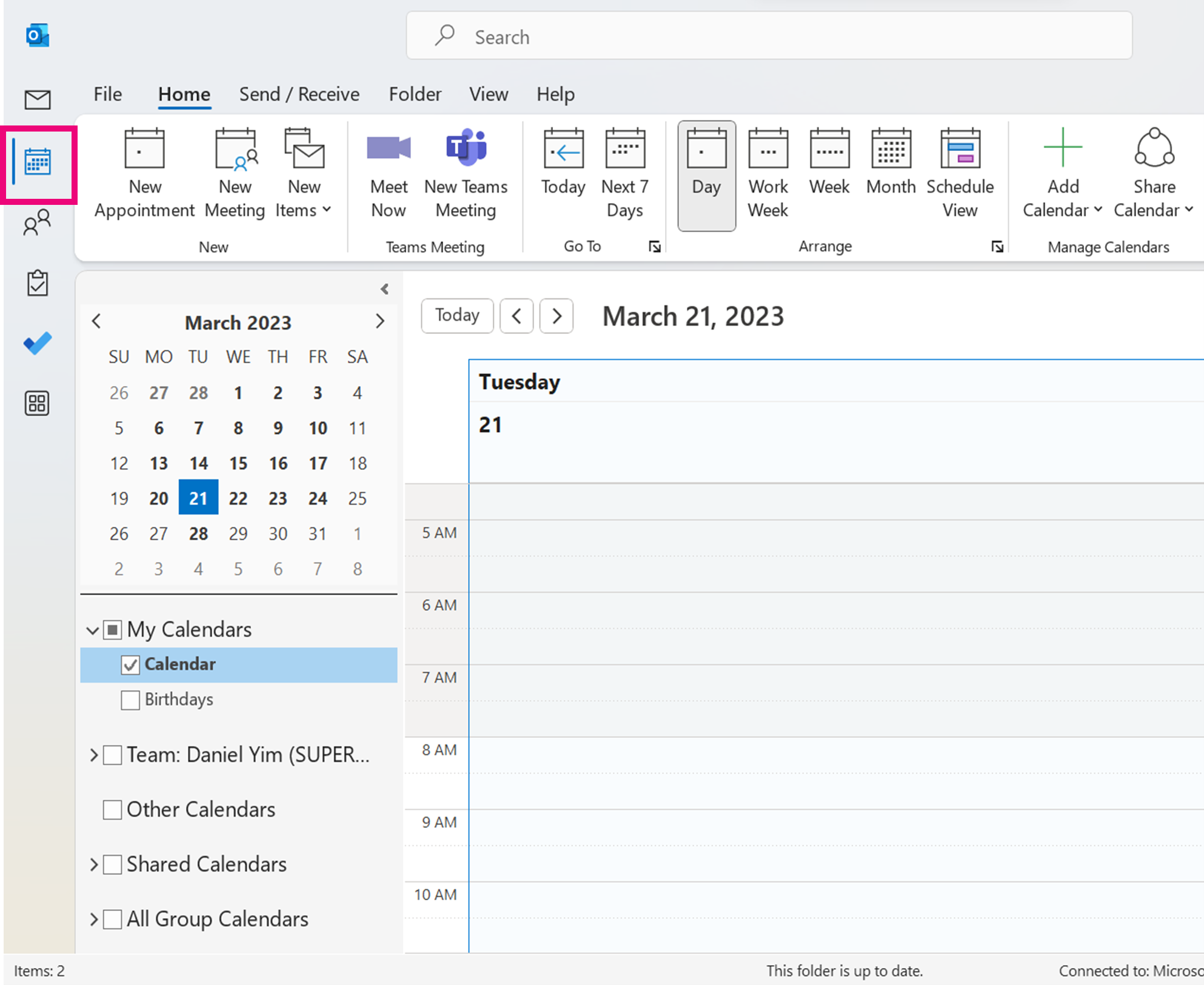
1. In the outlook desktop interface, select 【Calendar】 from the navigation bar.
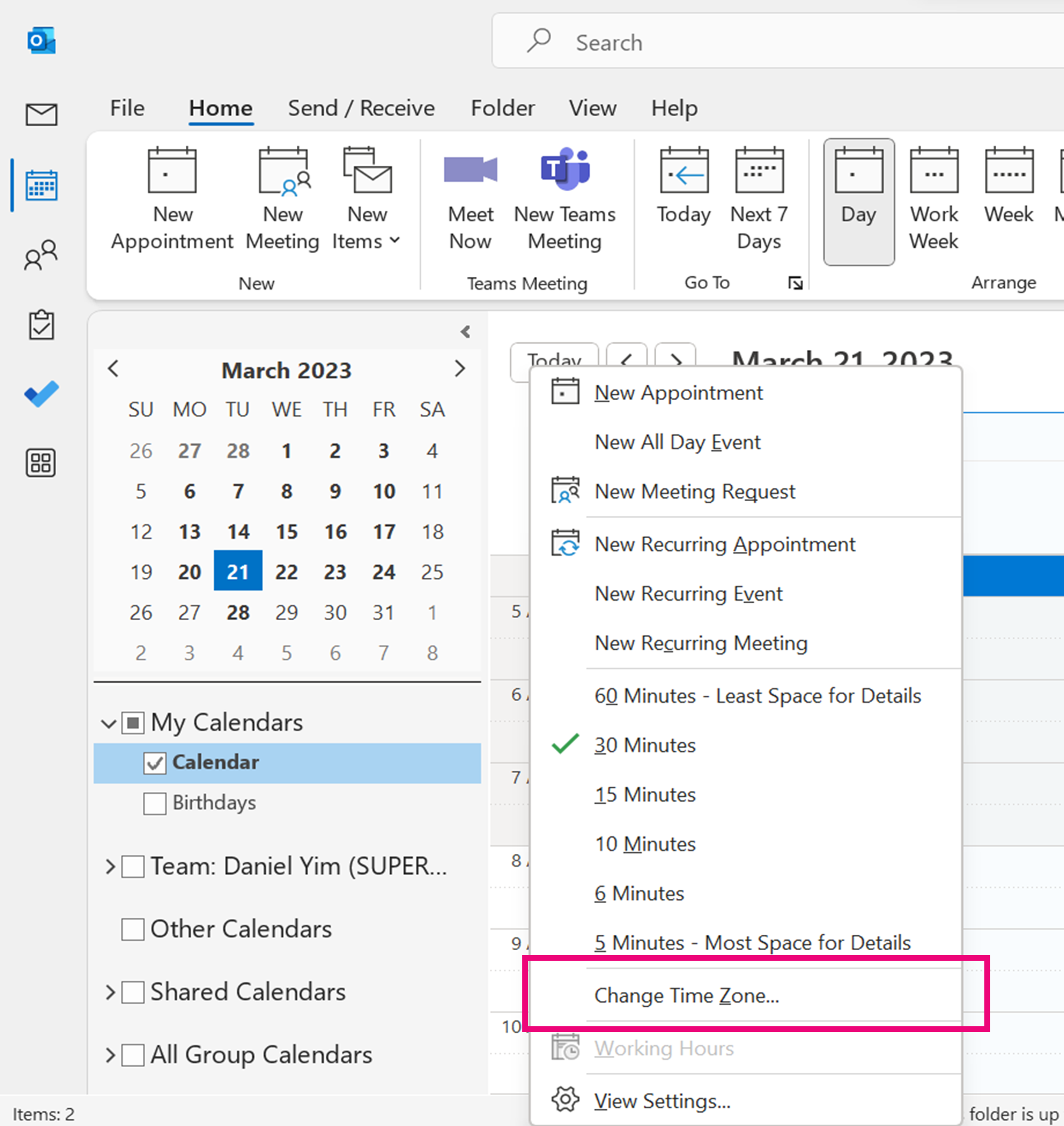
2. Under the time section, right click and select 【Change Time Zones】.
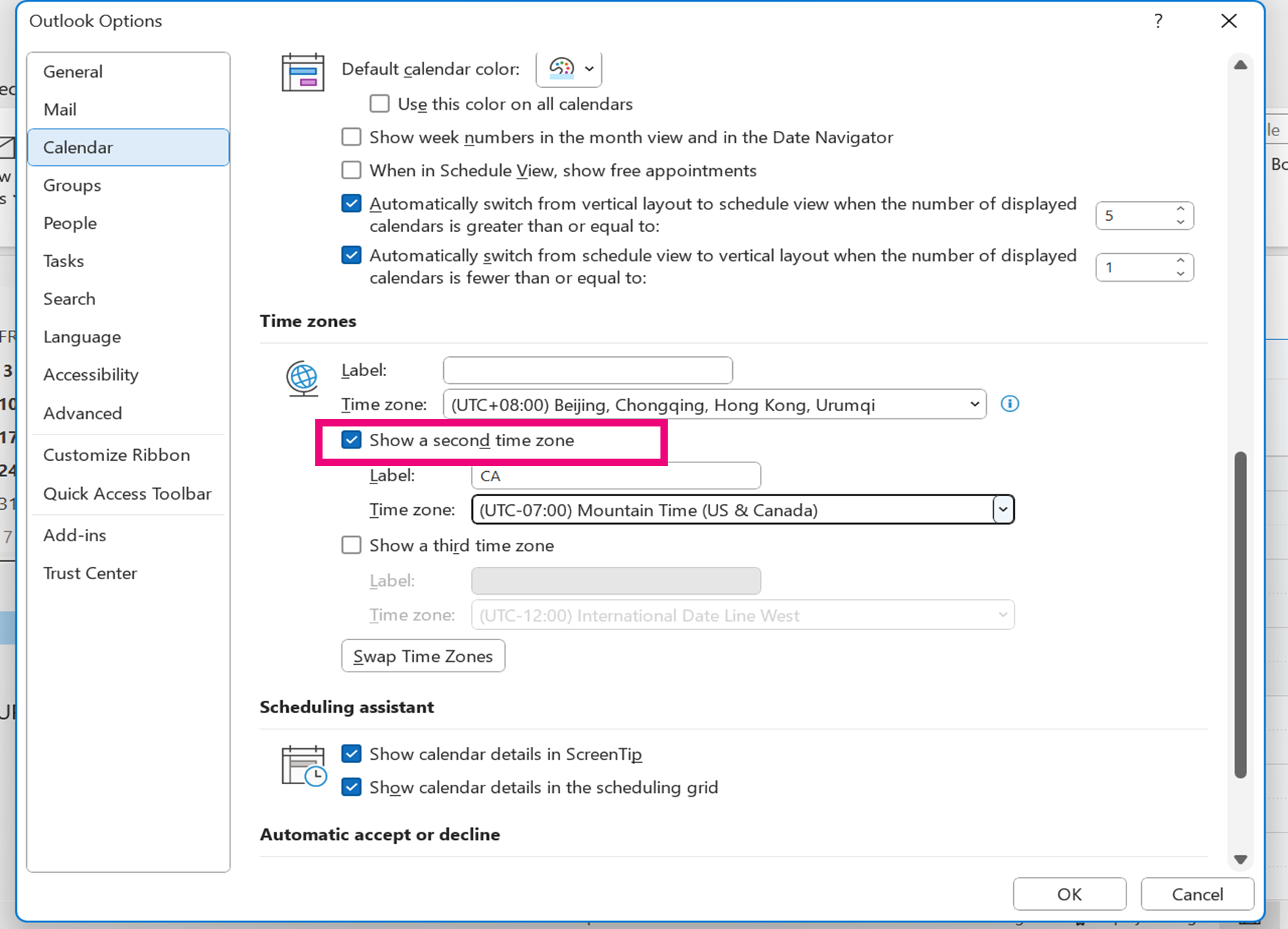
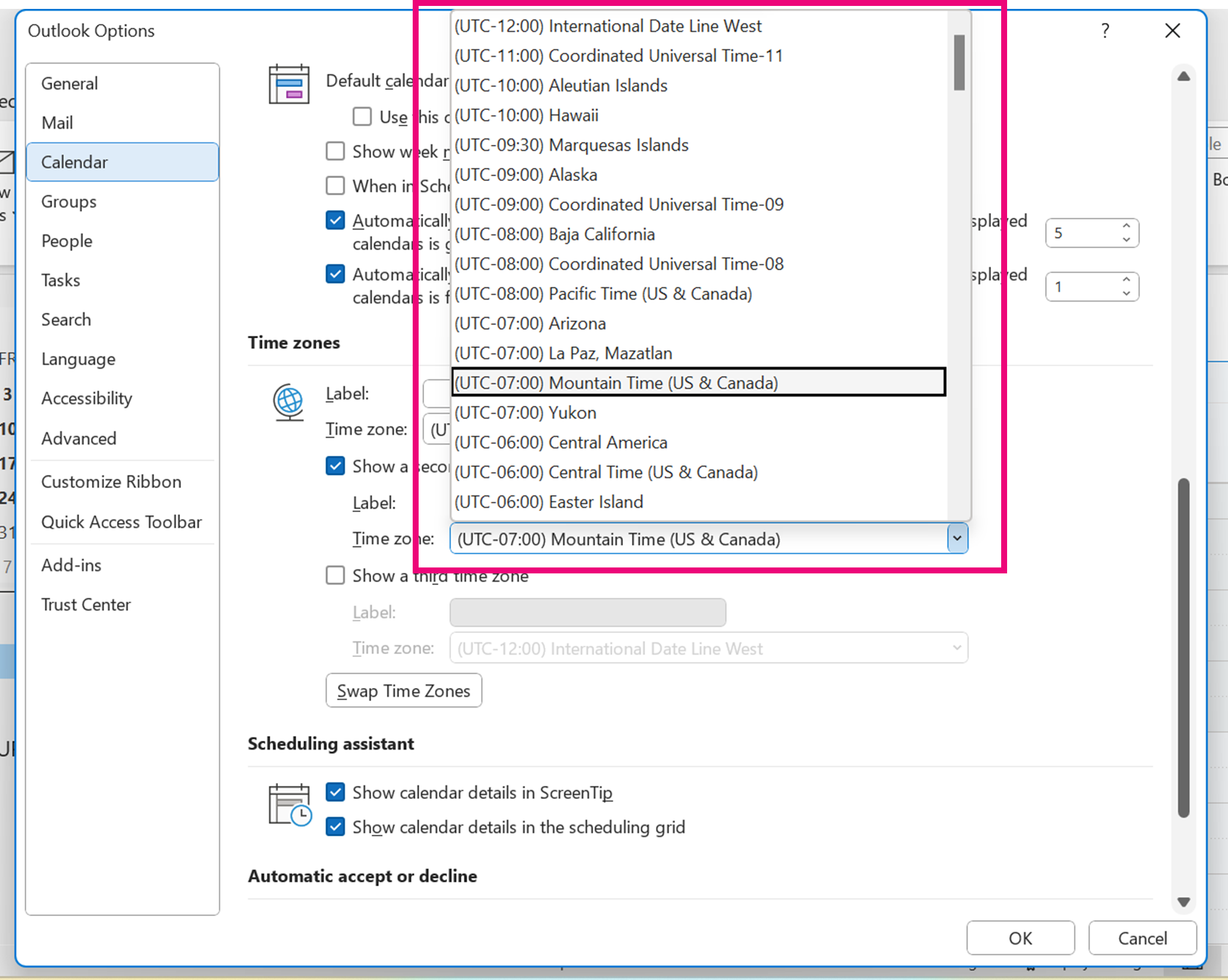
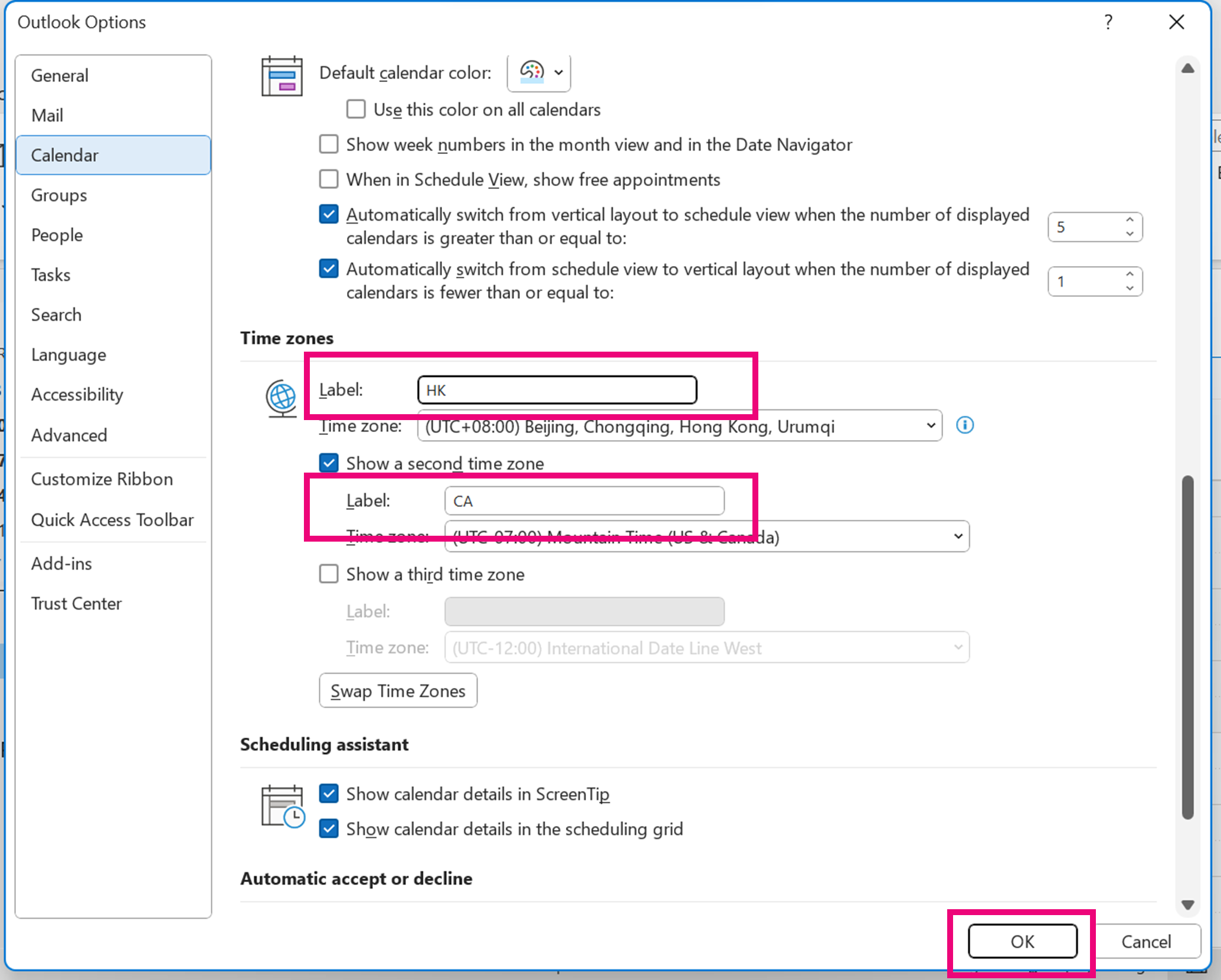
3. Scroll down to time zones and check the box 【Second Time Zone】. Select the location from the drop-down menu. Beside the default time zones, you can add additional two time zones into the calendar.
Label your time zone for easy reference, don’t forget to label the default time zone as well.
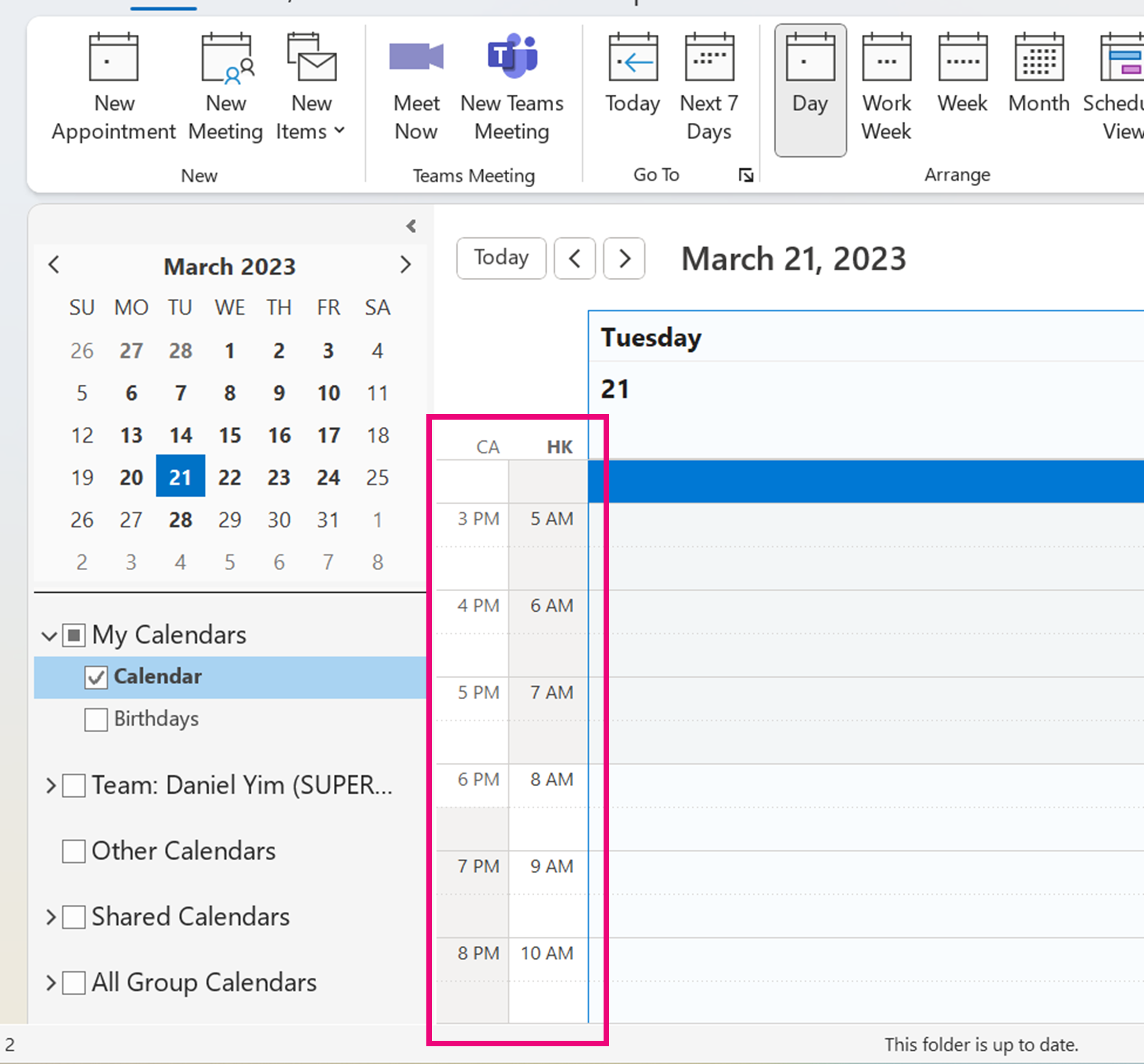
4. It will look like this when the setting is done.
Setting Public Holidays Schedule
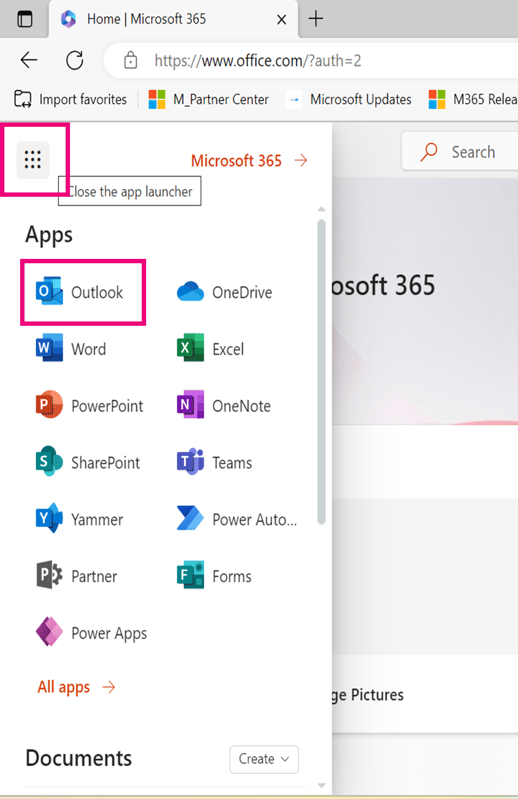
1. Login into portal from your web browser and select Outlook from the app launcher.
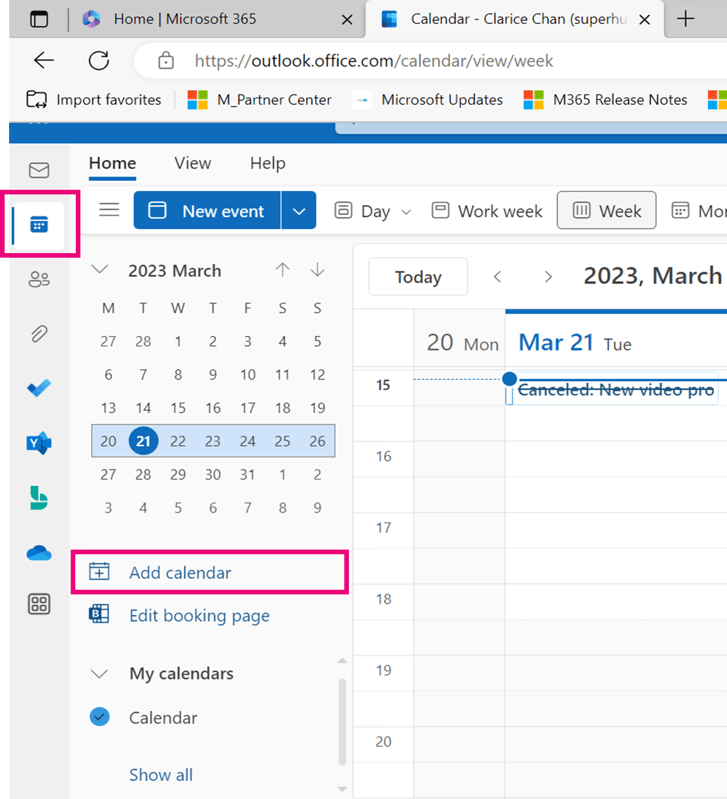
2. Select 【Calendar】 from the navigation bar and select 【Add Calendar】.
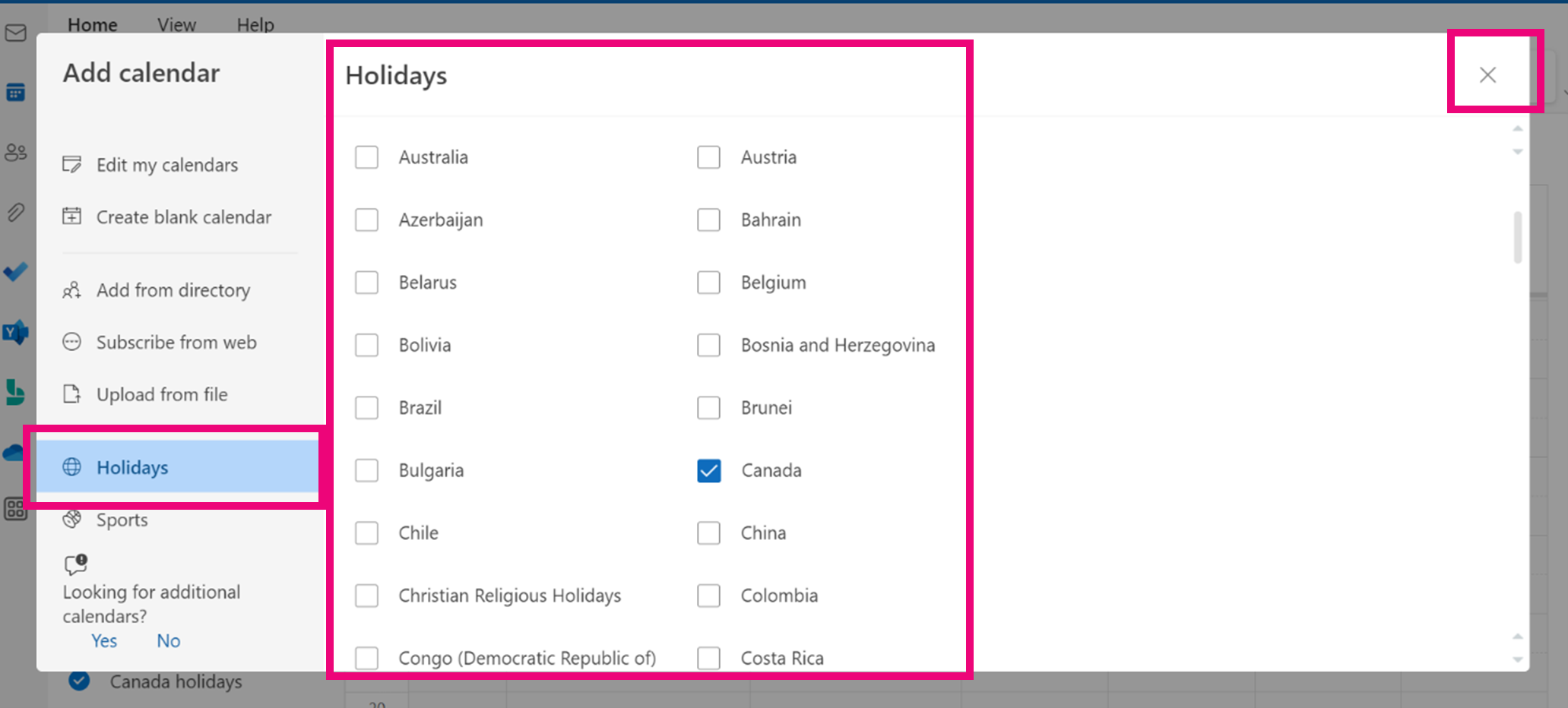
3. From the pop-up menu select 【Holidays】, and check the box of the location you want once it finished loading close the window. You can add multiple holidays schedules.
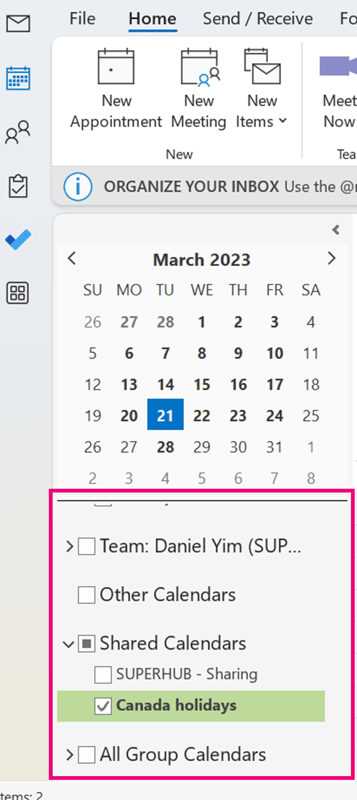
4. You will be able to locate the calendar schedule under 【My Calendars】 in your Outlook Desktop. (If you cannot find it in 【My Calendars】, you can locate it under 【Shared Calendars】).
Simply check the box if you want it to appear in the Calendar schedule.
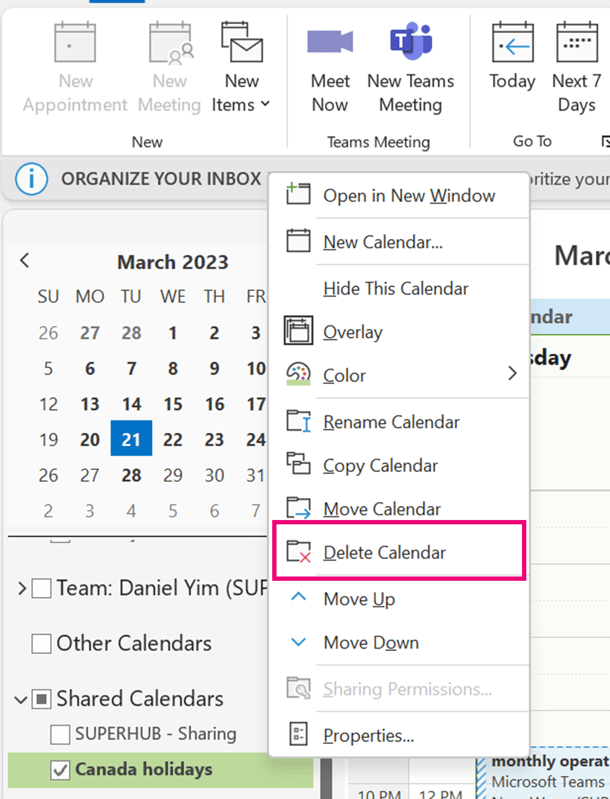
5. To remove the calendar, hoover your mouse to the calendar, right click and select 【Delete Calendar】.
Through adding additional time zones and public holiday schedules, you will now know the best timing to contact your colleagues or business partners. As a result, it will enhance and create better work collaborations.